🚀 Onboarding
Your first published chapter
From raw idea to a live chapter on Whatoon, step by step. Plan for a 2-4h session depending on speed — AI does a lot but doesn't decide for you.
💭 The idea
Pitch in 2 lines max
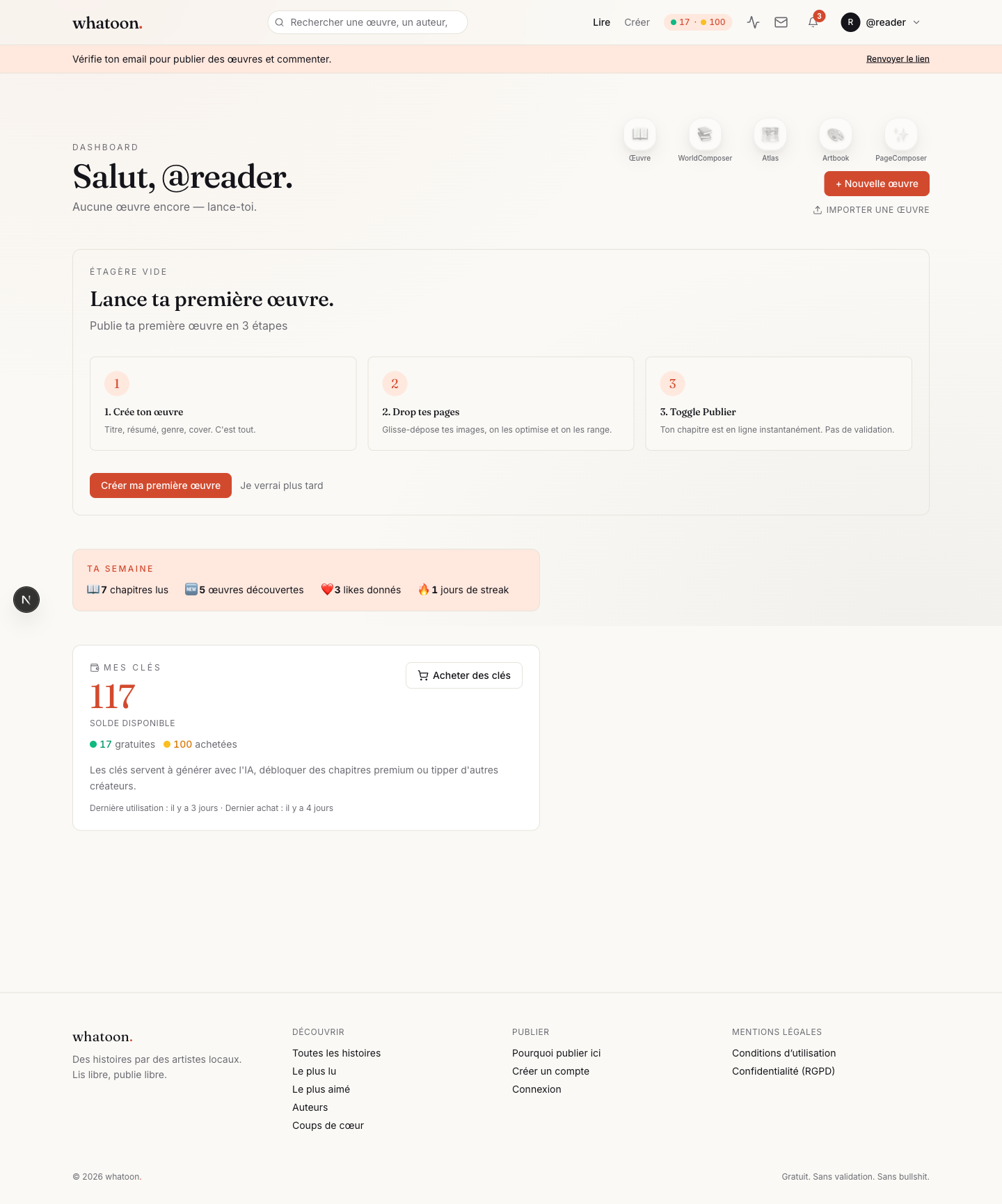
Before touching Whatoon, write your pitch in 2 lines: 'Who? Wants what? What obstacle?'. If you can't summarize it, your chapter 1 will scatter. Doesn't need to be perfect — you can pivot, but you need a compass.
- Example: 'Yuna, a powerless teen, must infiltrate a sorcerer school to save her brother.'
- Keep it accessible to any reader — no jargon from your universe.
- You can ask AI to suggest 5 pitches from a theme.
📖 The work
Create your work
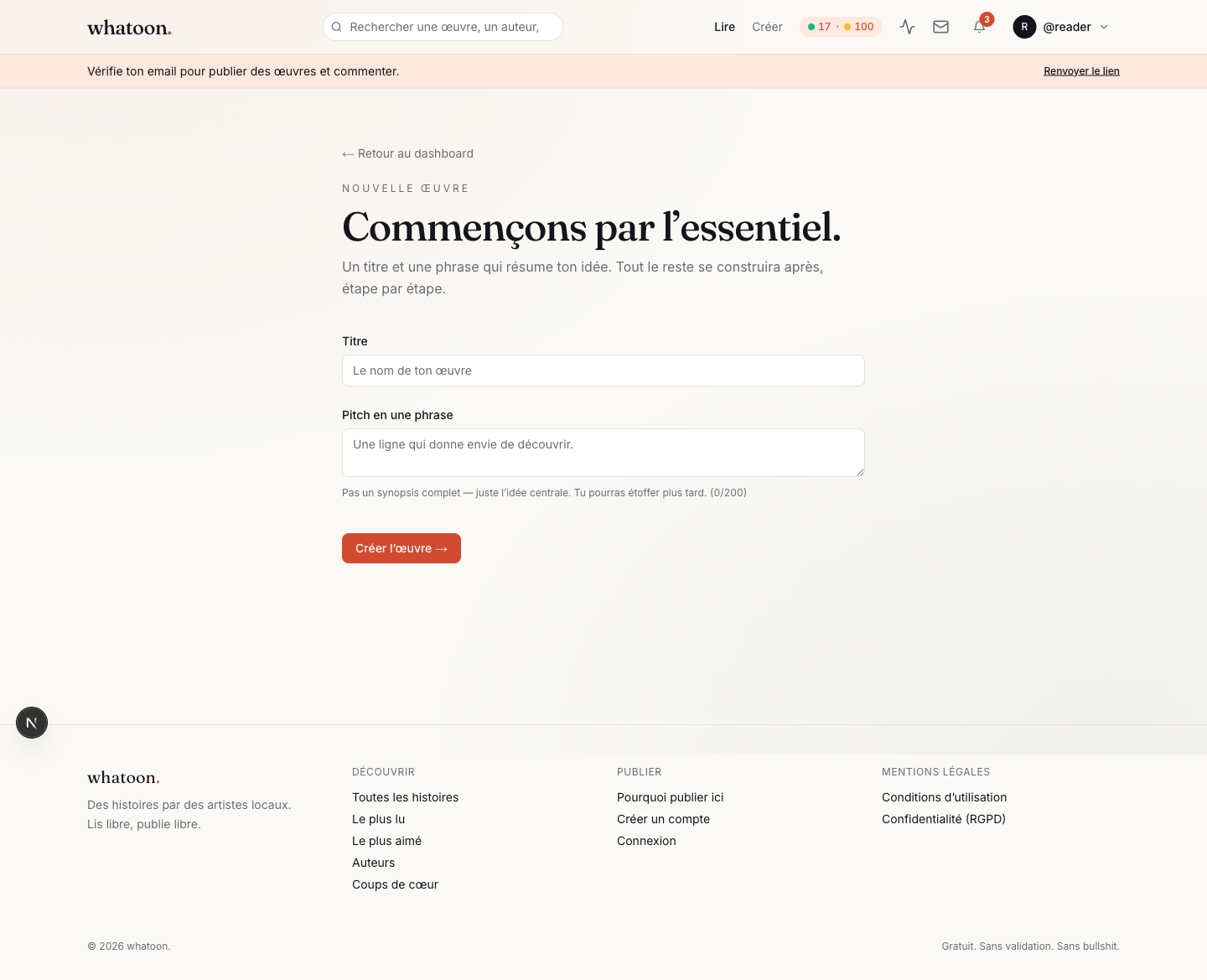
Pick the format: MANGA (classic RTL pages), WEBTOON (vertical scroll), or NOVEL (pure text). Format is permanent — don't switch mid-way. Fill in the title + a short summary + a style image (visual reference that guides every AI generation).
- Title must hook in 3 seconds (average scroll-feed window).
- Style image is crucial: without it, AI scatters.
- Cover can wait — you'll generate it in PageComposer 'cover' mode at the end.
🌍 Worldbook
Express bible — 30 min is enough
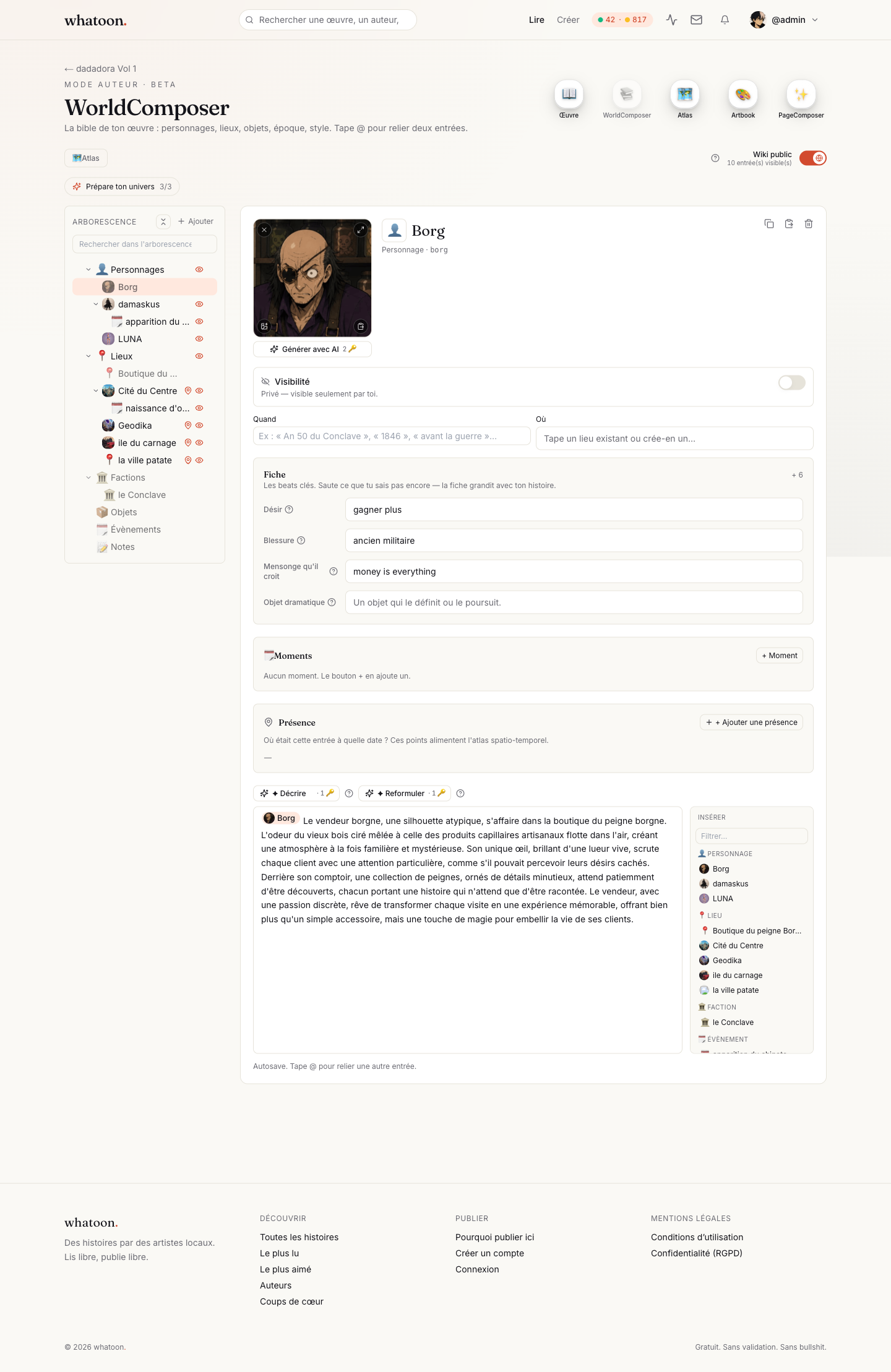
Before chapter 1: 3 main characters with reference image, 1-2 key locations, a few glossary entries if specific universe. The most cost-effective investment — every @-mention in your prompts injects these refs.
✏️ Script
Script the chapter — not the page
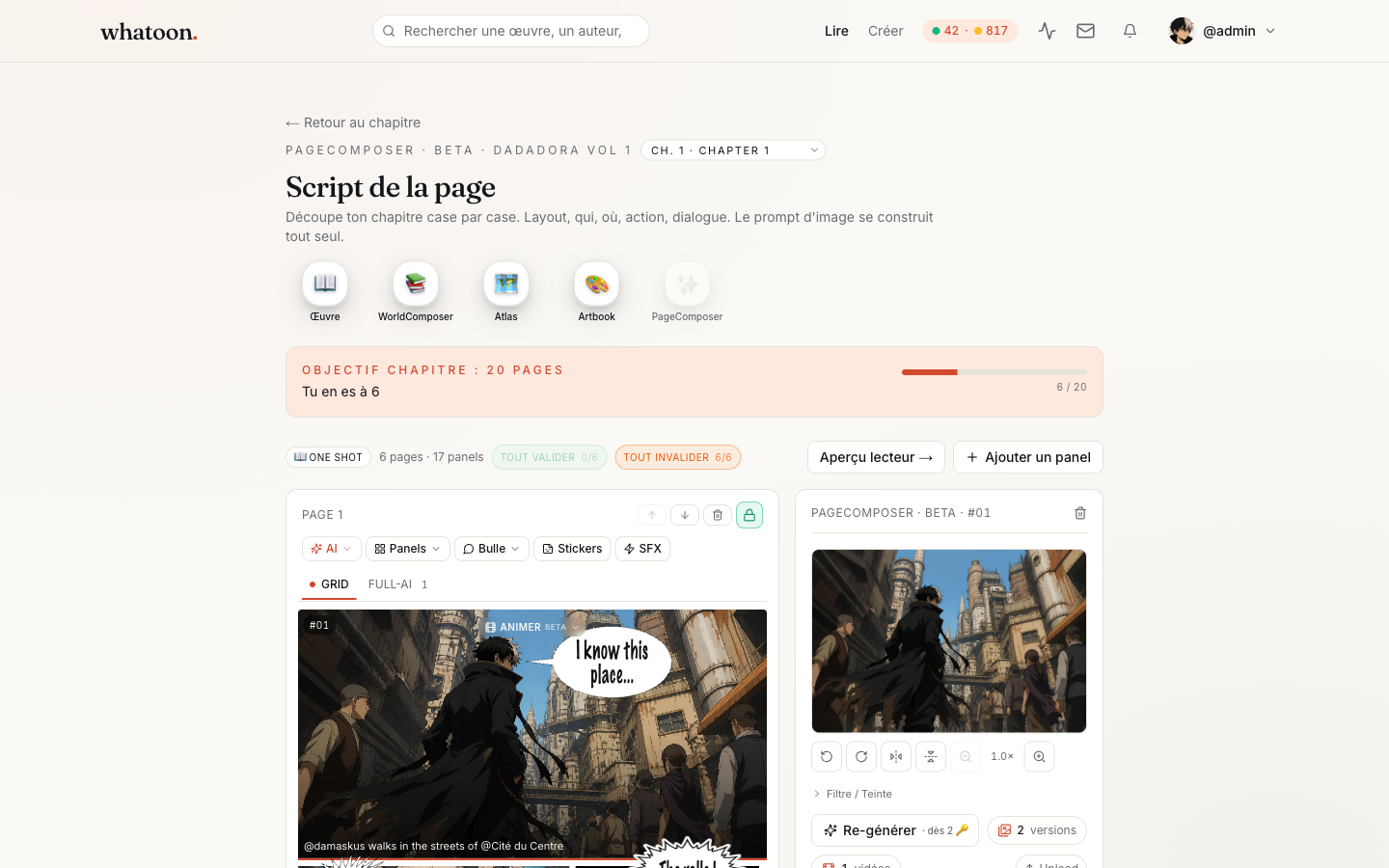
Open your chapter. Script view lets you lay out panels in sequence with description, dialogue, who speaks, where. You can type '/' to insert a new panel and @-mention your entries. For a first chapter, aim 20-40 panels.
- Describe WHAT WE SEE, not what characters think — this is comics.
- Alternate wide shots (establish) and tight (emotion). Not just close-ups.
- Stuck? The 'Continue' button proposes the next panel via AI.
🎨 PageComposer
Your first page
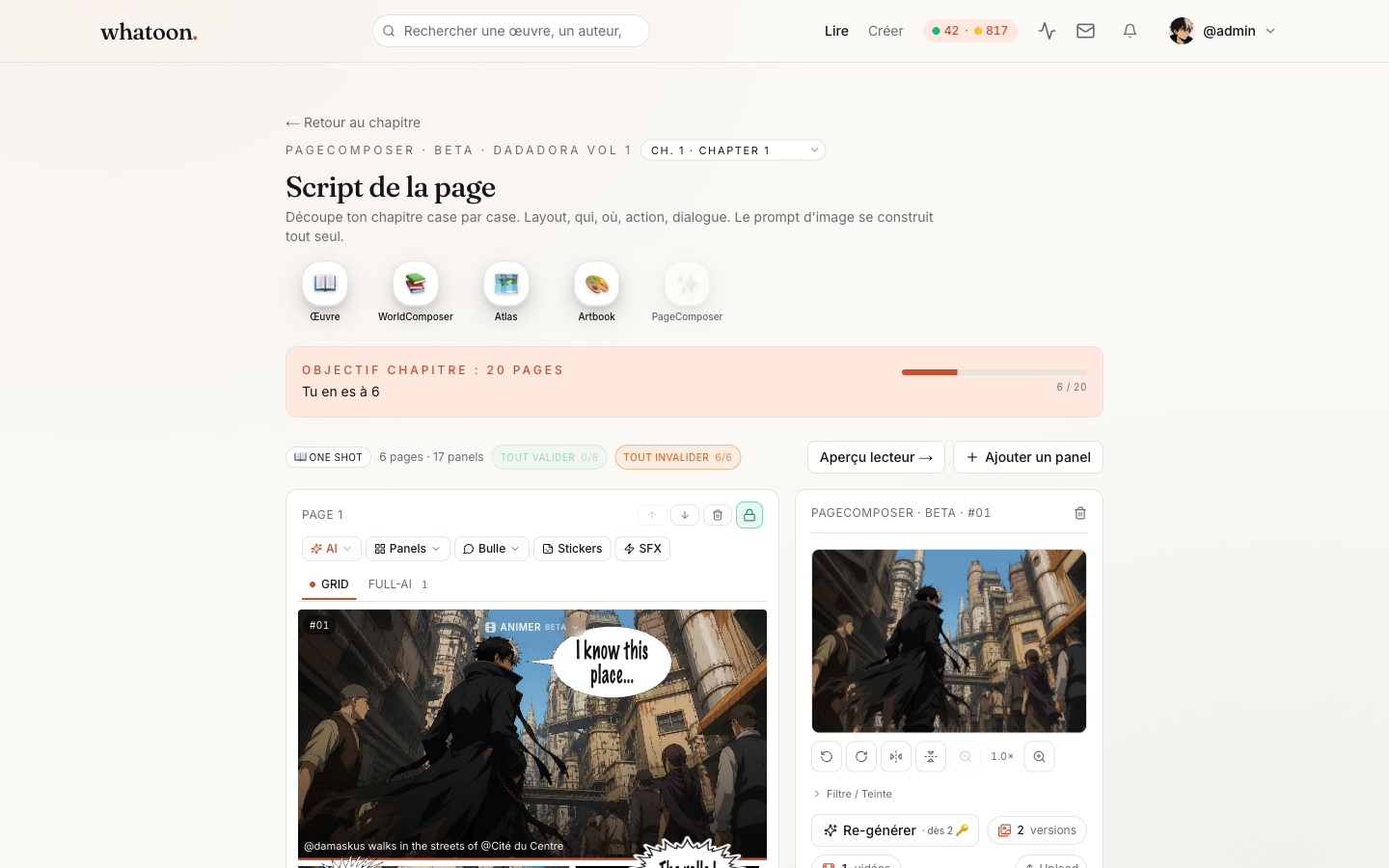
From script, switch to PageComposer mode. Pick a layout (template or custom) for your first page. You can generate each panel one by one (GRID mode) or let AI compose the whole page at once (FULL-AI mode). Add bubbles, stickers and SFX on top.
- GRID: pixel-perfect control, slower (1 panel = 1 generation).
- FULL-AI: fast, pro look, less per-panel control.
- You can mix: page 1 GRID for setup, pages 2-3 FULL-AI for pacing.
PageComposer · visual variant
Edit a bubble
Animate a panel (AI)
Rearrange the layout
Already have your pages?
Drag & drop pages
🔒 Validation
Lock each page when ready
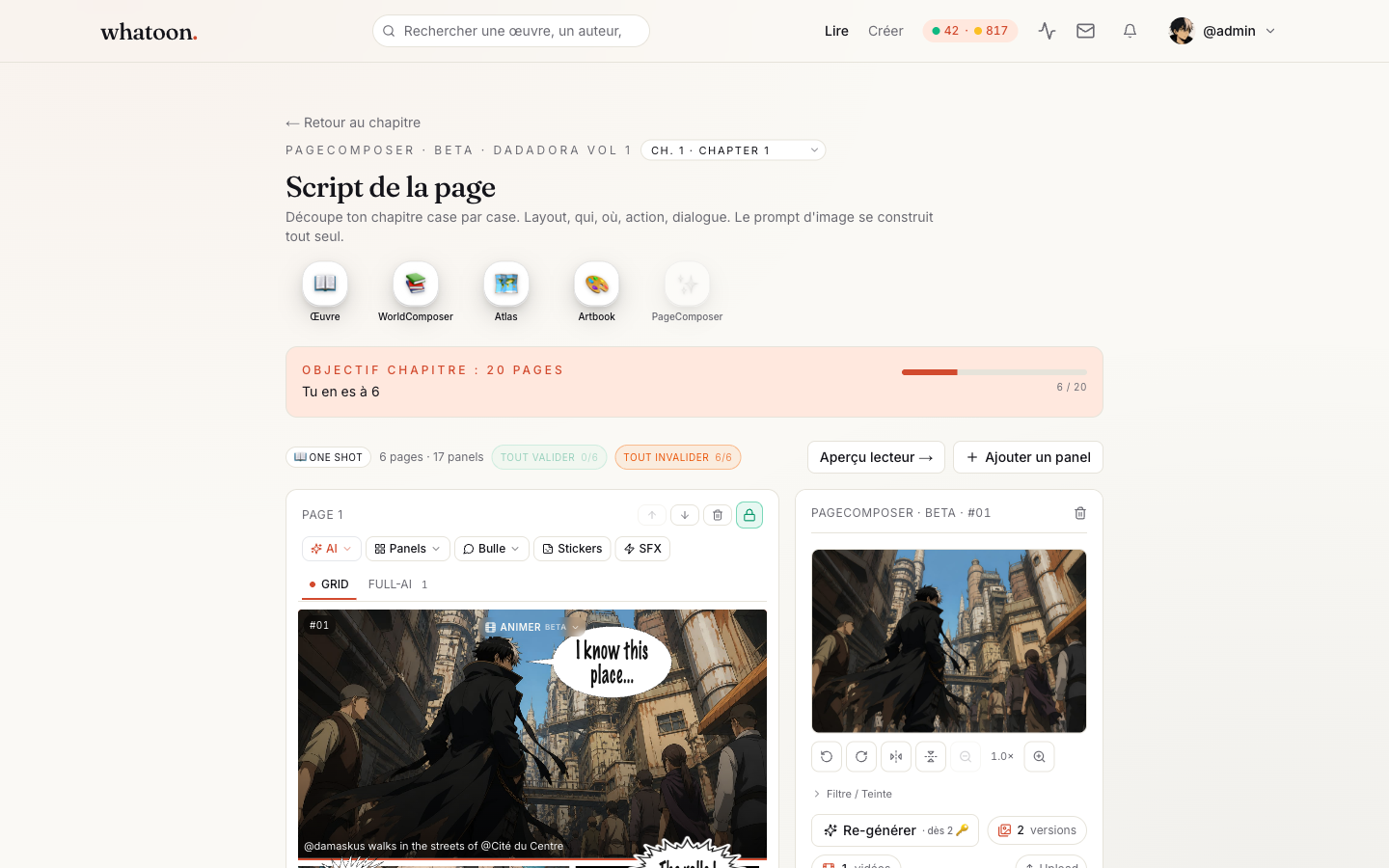
The green lock on each page triggers 'flatten': your page is flattened into one PNG, uploaded, and becomes the official version for readers. Until you lock, the page stays in draft — invisible to readers.
- You can unlock anytime to edit.
- 'Lock all' button to batch when everything is ready.
- The X/Y pages badge at the top tracks progress.
🚀 Release
Publish the chapter
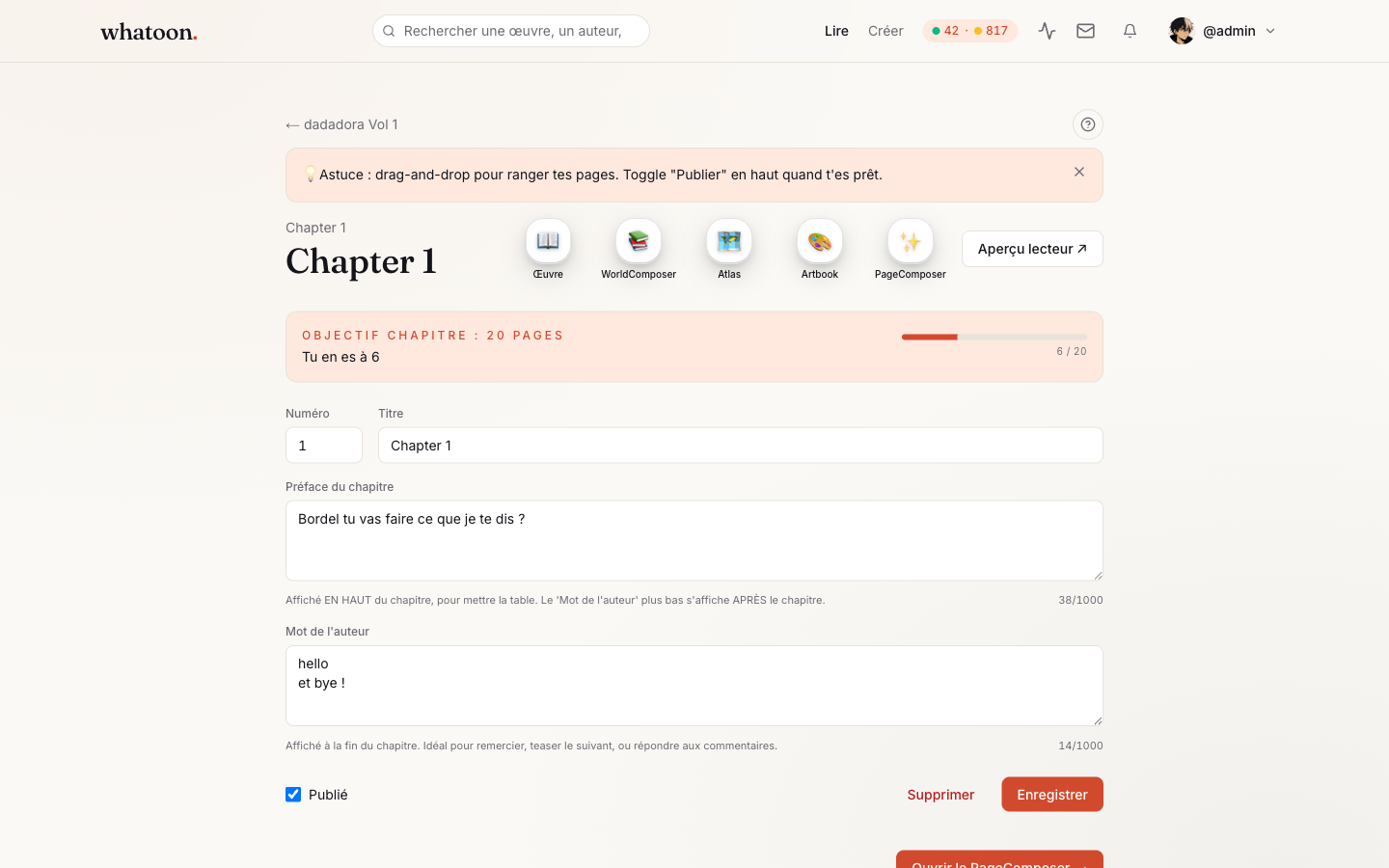
All pages locked? Go to the chapter card and toggle 'Published'. The chapter appears immediately on your public profile and in the Whatoon feed. First chapter = always free; following ones can be gated.
- Double-check the chapter title + thumb before publishing.
- Reader preview ('Preview as reader' button) shows exactly what they'll see.
- You can unpublish anytime — chapter goes back to draft, nothing lost.
📣 After
Keep the chapter alive
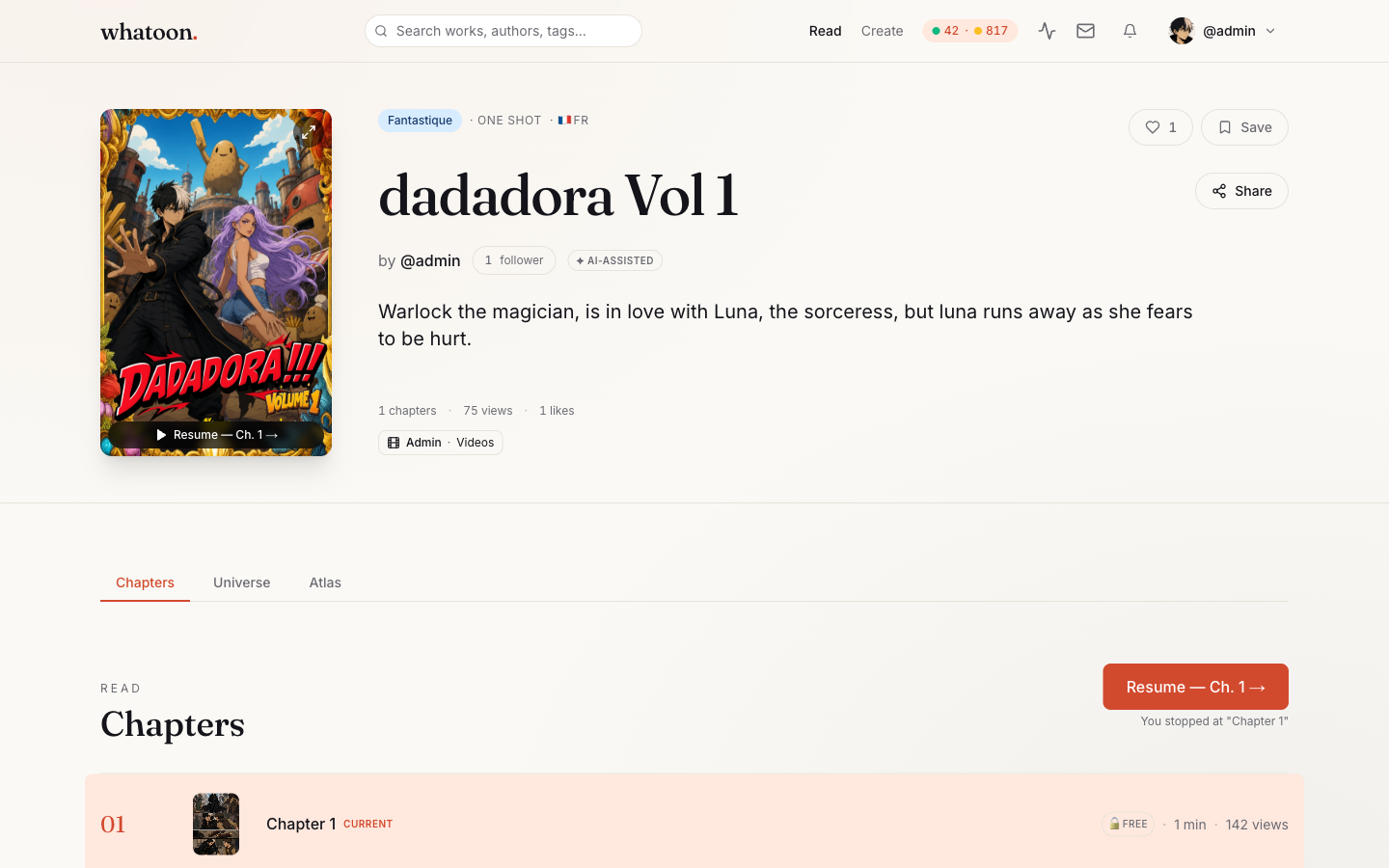
Work doesn't stop at publishing. Share the link on your socials, reply to early comments within 48h, watch your analytics to see where readers drop off. And above all: start the next chapter — steady rhythm is what makes a work climb.
- The chapter URL is directly shareable (permanent unique link).
- Stats tab gives you views, likes, completion rate.
- Engagement sparkline coming — it will tell you which page loses readers.
First-publish blockers? Back to creator resources